Troubleshooting Tip: Possible reasons for FortiClient SSL VPN connectivity failure at specific percentages
Last Updated a year ago
Description
This article describes common causes of errors where the SSL VPN stops negotiating at specific percentages and offers solutions.
Scope
FortiOS.
Solution
The cause may vary depending on the percentage the negotiation stops at:
10%.
The error may be 'Unable to establish the VPN connection. The VPN server may be unreachable'.
The issue is usually due to a network connection.
Check whether the PC can access the internet and reach the VPN server on the necessary port.
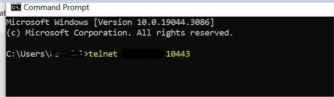
Make sure to be able to telnet the SSL VPN server IP on the SSL VPN port on the remote system.
Check whether the correct remote Gateway and port are configured in FortiClient settings.
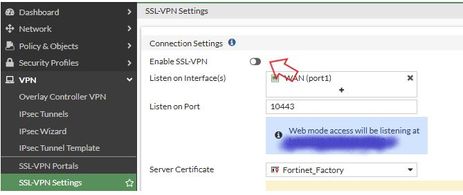
Confirm whether the server certificate has been selected in FortiGate SSL VPN settings.
Check the firewall policy to make sure there is at least one policy with an Incoming Interface as an SSL VPN tunnel interface (ssl.root).
Check if any VIP is configured for the SSL VPN port. (Or) No VIP should be configured for the WAN IP used for VPN without port forwarding enabled.
Check restrictions based on Geolocation in SSL VPN settings or a local-in-policy that could prevent the endpoint from connecting.
Try to reach the VPN URL from the browser to confirm connectivity.
Make sure the setting 'Restrict access' is set to 'Allow access from any host'. If it is set to 'Limit access to specific host', make sure the client's public IP is allowed.
Sometimes, if a source address is defined in the SSL VPN settings and the Source negate option is enabled in the VPN setting on the CLI, then the process will also fail at 10%. Disabling source-address-negate will make it pass this 10% fail error.
If the virtual interface (for example, ssl.root when SSL VPN is configured on the root VDOM) is down, users will experience connectivity failures. Ensure that the virtual interface status is set to 'up'. This setting is visible in the CLI, and by default, the status is 'up'.
config system interface
edit "ssl.root"
set vdom "root"
set status down set type tunnel set alias "SSL VPN interface" set snmp-index 14
next
end
Running the sniffer will show if the traffic is coming on the FortiGate over the SSL VPN port and if the FortiGate is responding to it.
diagnose sniffer packet any ' host and port ' 4 0 l
If the traffic is coming but FortiGate is not responding, debug commands will show if it is matching any deny policy or getting denied by no policy match
diagnose debug disable diagnose debug reset diagnose debug flow show iprope en diagnose debug flow show func en diagnose debug flow filter addr diagnose debug flow filter port diagnose debug flow trace start 300 diagnose debug enable
An application or the FortiGate may cause this error. Check the local machine and network setup. If the VPN server is unreachable with a (-5) error, see The VPN server may be unreachable. (-5)' errors.
Wrong Port Forwarding using VIPs. If seeing inappropriate DNAT taking place in the Debug flow, check the VIP configuration; they might have services-ALL enabled, switch it to ALL_TCP.
This can happen because the FortiGate custom server certificate has expired. Select "Fortinet_Factory" certificate as a workaround.
42 or 43%.
Negotiation stops at this percentage if there is any issue with authentication (sslvpn_login_permission_denied) For local users, the issue could be just the username/password being incorrect. Ensure that the username is entered with proper case, exactly as it was created. For the remote users, the issue is still related to authentication. The following error can be seen in sslvpn -1 and fnbamd -1 debugs: 'find_matched_usr_grps-Failed group matching'. The following debugs can be used to verify if the user belongs to the LDAP user group. If not, adding the user to the correct group can resolve this issue.
diagnose debug application sslvpn -1
diagnose debug application fnbamd -1
diagnose debug enable
45%.
Negotiation stops at this percentage if there is any authentication issue. For local users, the issue could be just the username/password being incorrect.
For the remote users, the issue is still related to authentication, but root causes can be different. Few possible reasons: FortiGate is unable to reach the remote server, the remote server is sending authentication failure, or secure connection failing for LDAPS. Example: If negotiation stops at this percentage with the error 'ldap connection timeout', adjust the timeout settings:
config system global
set ldapconntimeout 300000 end
48%.
Negotiation stops at this percentage if there is an issue with two-factor authentication.
If negotiation stops at this percentage with the error 'Credential or SSL VPN configuration is wrong (-7200)', recheck the credentials.
'Permission denied. (-455)' error. Check if the user is included in the user group that is configured in SSL VPN Authentication/Portal Mapping settings.
With SAML authentication, check if the login prompt is presented. If it is, try increasing the remote auth timeout under global settings. If two-factor authentication is expiring, it will generate a failure at 48%. If it is 5 seconds, it can be increased to 120 or 180 seconds as per the following CLI commands.
Those are seconds that the FortiGate waits for a response from remote authentication, in the case of multifactor authentication if the timer is less the session will expire and FortiGate will close the connection leading it to fail at 48%.
The SSL VPN waits for 10x remote timeout +30 (s) for a valid token code to be provided before closing down the connection, even if the token code is valid for longer.
Example: If 240s is set for two-factor-email-expiry so, the remote timeout must be greater or equal to 21. 240 = 10x remote timeout + 30 <=> remote timeout = 21.
Note: For SSL VPN authentication with Azure SAML the remoteauthtimeout is doubled. For example, when set as 30 seconds those will become 60 seconds when the user waits for the password.
config system global
set remoteauthtimeout 120 <----- The seconds that the FortiGate waits for a response from the remote authentication server. end
Host check requirement error (-455). If there is no host check enabled on VPN portals and users are still getting this error, check if the firewall has 'sslvpnd' daemon crashes. To check crash logs on FortiGate, execute this command:
Ensure tunnel mode is enabled on the SSL VPN portal.
It may feature an error such as 'Unable to log on to the server. The username or password may not be configured properly for this connection'.
Negotiation stops at this stage due to issues with user privileges.
If negotiation stops at this stage, check whether the username and password were entered correctly.
Check the user and user group. This issue often occurs if the user is not in the correct user group with VPN access.
The -14 error of around 80% could be because of a user/group mismatch between the SSL VPN authentication rules and the Firewall policy for SSL VPN. (Related article: Technical Tip: VPN Server may be unreachable (-14) ).
It is possible to have user and group configured, but it must be exactly the same in SSL VPN authentication rules and Firewall policy.
Issues at this stage indicate an inability to establish a tunnel after authentication is already completed.
Can be caused by network issues - for example, IPv6 to IPv4 connections (not supported), high network latency, blocked traffic, or traffic inspection between FortiClient and FortiGate (see Troubleshooting Tip: SSL VPN fails at 98%).